Quickstart X-Plane Model
X-Plane is a physics simulator and as such, needs a minimum amount of data in order to load an aircraft into X-Plane with numerical stability and not crash the sim. This quickstart checklist is intended to quickly guide users through a minimum of steps to get an aircraft file loading into X-Plane with no error or warning messages from either PlaneMaker or X-Plane. We use generic placeholder values here initially, which you can change after the model loads in X-Plane reliably.
NOTE
Once your aircraft loads in X-Plane with no errors or warnings, then you can keep both PlaneMaker and X-Plane open at the same time, make your design changes in Planemaker, save the aircraft, and then reload the aircraft model from within X-Plane using X-Plane's (Developer > Reload Aircraft) menu item. This is the fastest workflow when developing aircraft models.
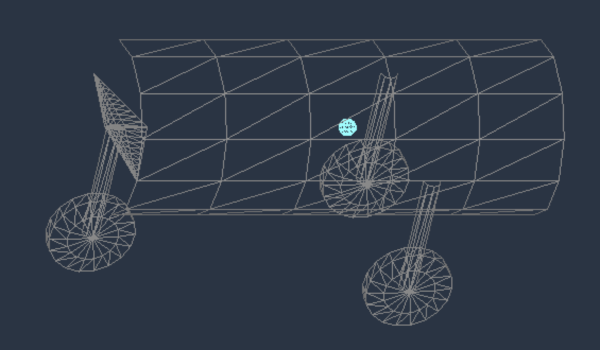
After the generic data shown below is entered in Plane Maker, the aircraft should look as shown below. With no propulsion and with landing gear, X-Plane will assume this is a glider and you'll see a tow-plane in X-Plane. Once you have reached this point, then the real fun begins and you can begin configuring and shaping all the geometry and systems more accurately and reload the aircraft in X-Plane quickly with no worry about warnings and error messages.
| Task | Notes | |
|---|---|---|
| Create New File | Don't save yet, you'll just get warning messages! | |
| Name the Plane | Enter name for X-Planes UI (Standard > Author) | |
| Enter VNE Speed | 100 (Standard > Viewpoint > General Tab) | |
| Enter Empty Weight | 500 (Standard > Weight & Balance > Weight/Bal Tab) | |
| Enter Maximum Weight | 700 (Standard > Weight & Balance > Weight/Bal Tab) | |
| Set Wing 1 Semi-Length | 2.0 (Standard > Wings > Wing 1 Tab) | |
| Set Wing 1 Root-Chord | 1.0 (Standard > Wings > Wing 1 Tab) | |
| Set gear long arms | 0.0 for nose gear, +8.0 for both main gear (Standard > Landing Gear) | |
| Set gear lateral arms | 0.0 for nose gear, -2.0 for left, +2.0 for right (Standard > Landing Gear) | |
| Set gear leg lengths | 2.0 for all (Standard > Landing Gear) | |
| Set tire radii | 1.0 for all tires (Standard > Landing Gear > Gear Loc Tab) | |
| Set tire widths | 0.2 for all tires (Standard > Landing Gear > Gear Loc Tab) | |
| Remove Engine Generator | Set # of engine driven generators to 0. Standard > Systems > Electrical 1 Tab | |
| Set long CG location | +7.0 Standard > Weight & Balance (set the middle field) | |
| Save the Plane | see Project Management Organization for more info. File > Save As |
Congratulations!
Now the aircraft should load in X-Plane with no errors or warnings. If you are new to X-Plane aircraft modeling and want to reshape this basic model into a flyable aircraft just to get a feel for working with Plane Maker, then check out our Build First/Read Later tutorial on the front page of this tutorials manual!